 Help Center
How to use Wellhub in Momento
Set up the integration, publish classes to Wellhub, review bookings, and validate check-in from Momento.

Wellhub lets users from that platform book classes at your center, with those bookings appearing directly in Momento inside the matching session.
The key idea is that Momento does not publish every session automatically: the center decides which classes are enabled for Wellhub and how many spots are reserved for those users.
Before starting, confirm that the center has an active Wellhub relationship, that the integration/API is enabled, and that you have the correct Gym ID.
Recommended steps
- Open Modules and go to Wellhub.
- Enable the integration and enter the center Gym ID.
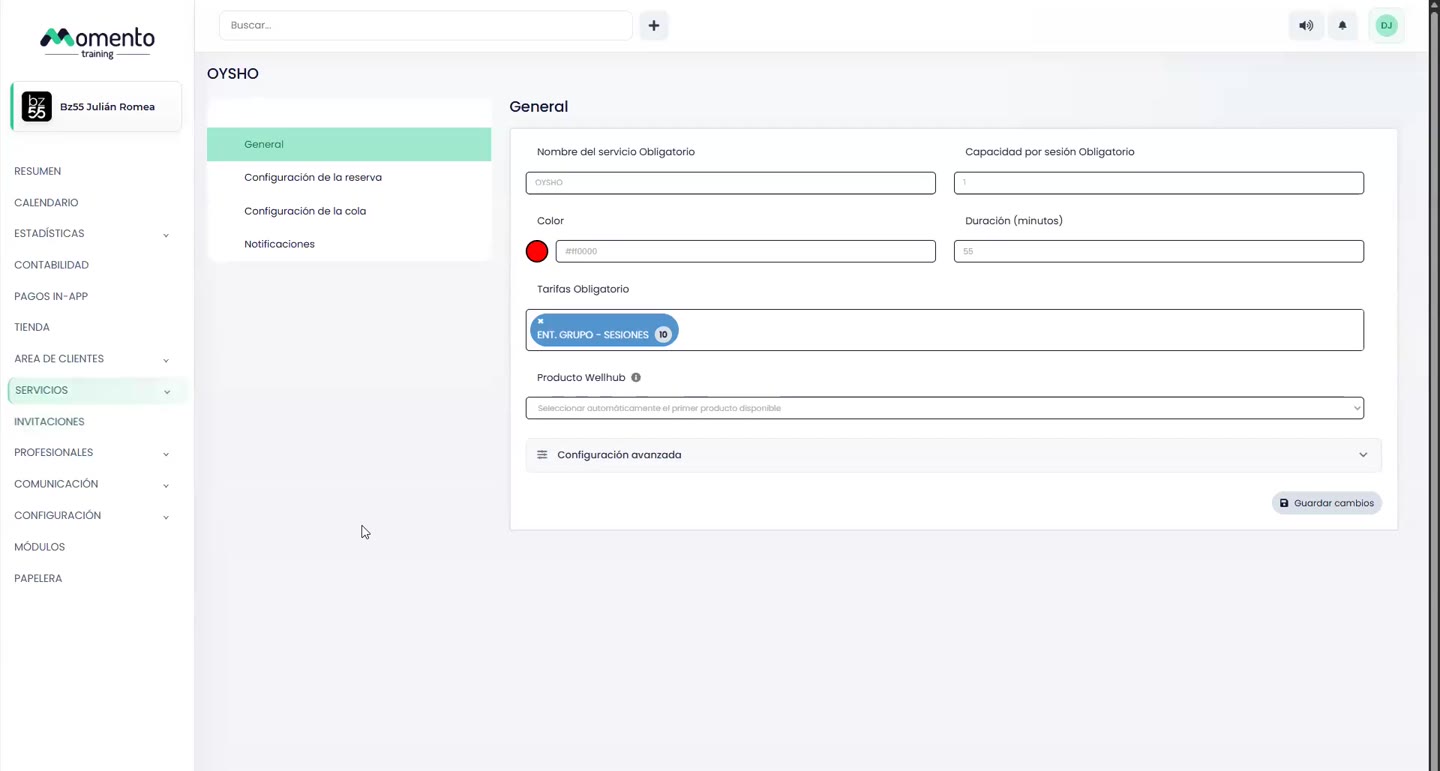
- Review in Services which Wellhub product each service should use, if needed.
- Open a future session in Calendar and go into its settings.
- Enable Wellhub for that class, set the Wellhub capacity, and sync.
- Check whether the session shows the Wellhub identifier or icon.
- When a booking arrives from Wellhub, review the attendee and wait for the user check-in from the Wellhub app.
Requirements before activation
The center needs an active account or agreement with Wellhub, and Wellhub must have enabled the integration for that center. In Momento, the Wellhub module must be available and enabled with a valid Gym ID.
Beyond the Gym ID, the internal technical setup requires an API key and webhook secret. If either is missing, the module may look enabled, but syncing classes, bookings, or check-ins may not work correctly.
It is also best to have services and future calendar sessions created already. Past sessions cannot be published to Wellhub, and sessions without available capacity should not be synced.
Enable the Wellhub module
From the panel, open Modules and then the Wellhub card. There you can enable the integration and enter the center Gym ID. The Gym ID identifies which Wellhub account should receive classes, slots, bookings, and check-ins.
If the module does not appear or shows as unavailable, the center will not be able to finish setup from the panel alone. In that case, review permissions or ask support to enable the module.
After saving, check with support if syncing does not start. The most common cause is missing internal technical setup or Wellhub not having enabled API access for the center yet.
Configure Wellhub products in services
Wellhub may have products associated with the center. In Momento, each published class needs a product ID. You can review or select the product from the matching service before publishing sessions.
If no product is selected manually, Momento tries to resolve it automatically: first from the service, then from the center default product, and then from the first valid product returned by Wellhub.
Do not assume every service should use the same product. Before publishing multiple classes, confirm with Wellhub which products the center has and whether they are in-person, virtual, or mixed.
Publish a class to Wellhub
To publish a specific session, open Calendar, select a future session, and go to its settings. Enable Wellhub for that class, set the maximum Wellhub capacity, and sync.
Wellhub capacity does not need to match the full class capacity. A class can have 20 total spots and only 5 available for Wellhub. Momento should never publish more availability to Wellhub than the session actually has left.
If the session already has Wellhub bookings, Momento protects them: it does not allow reducing Wellhub capacity below active Wellhub bookings and helps prevent changes that could leave the class out of sync.
Sync several classes at once
In Calendar you can use Selection to mark several sessions and sync them to Wellhub in bulk. This is useful after testing one individual class and then publishing more reviewed sessions.
Bulk sync skips past classes and classes that are already synced. When it finishes, review the summary to see how many sessions synced, were skipped, or failed.
Use it carefully: before running bulk sync, review schedules, total capacity, Wellhub capacity, services, and products. If many classes are configured incorrectly, the issue scales with the batch.
Wellhub bookings and check-in
The user books from Wellhub. When Wellhub sends the booking, Momento finds the linked session, checks that it is not full, validates remaining Wellhub capacity, and creates the local booking without an associated Momento purchase.
If the client does not exist, Momento tries to find them by Wellhub identifier, historical data, or email. If there is no match, it creates a new client. If Wellhub does not send a real email, Momento may generate a technical wellhub.local email, which should not be used for marketing communication.
The user must check in from the Wellhub app when arriving at the center. In Momento you can see bookings waiting for check-in or with check-in received. Until Wellhub sends that check-in, do not assume attendance is validated for Wellhub.
Changes, cancellations, and removal
Changes such as schedule, capacity, professional, resource, session status, or Wellhub capacity may trigger a slot resync. Momento tries to keep Wellhub updated, but if Wellhub does not respond, an error may need review.
Wellhub bookings should not be canceled from Momento as if they were normal bookings. The right flow is to manage cancellation from Wellhub so both platforms keep the same status.
If you remove a class from Wellhub from the session, Momento tries to delete the Wellhub slot and clear the local link. Before doing this, review active Wellhub bookings, because removing future availability does not by itself solve existing bookings.
Common issues
If Wellhub does not appear in Modules, review permissions and confirm that the module is available for the center. If it appears enabled but does not sync, check Gym ID, internal technical setup, Wellhub API status, and available products.
If a class cannot be synced, it is usually because it is in the past, has Wellhub capacity set to 0, exceeds total class capacity, tries to reduce capacity below active bookings, or the user lacks permission to modify sessions.
If a booking does not enter Momento, check that the Wellhub slot is linked to a session, that the session is not full or canceled, and that Wellhub capacity remains available. If a check-in does not appear validated, first confirm the user had a Wellhub booking and checked in from Wellhub.
Launch checklist
Before publishing many classes, confirm the active Wellhub agreement, correct Gym ID, available products, enabled API/integration, active Wellhub module in Momento, and internal setup reviewed by support.
Run a test with a future session: enable Wellhub, set capacity, sync, check that it appears in Wellhub, create a test booking, verify that it enters Momento, and validate check-in from the Wellhub app.
Once the test works, publish the remaining required sessions and review the sync summary. During the first days, check Wellhub attendees, capacity, received check-ins, and possible sync errors.