 Help Center
Add a professional
Add a member of your team.

Written by MomentoNovember 6, 2026
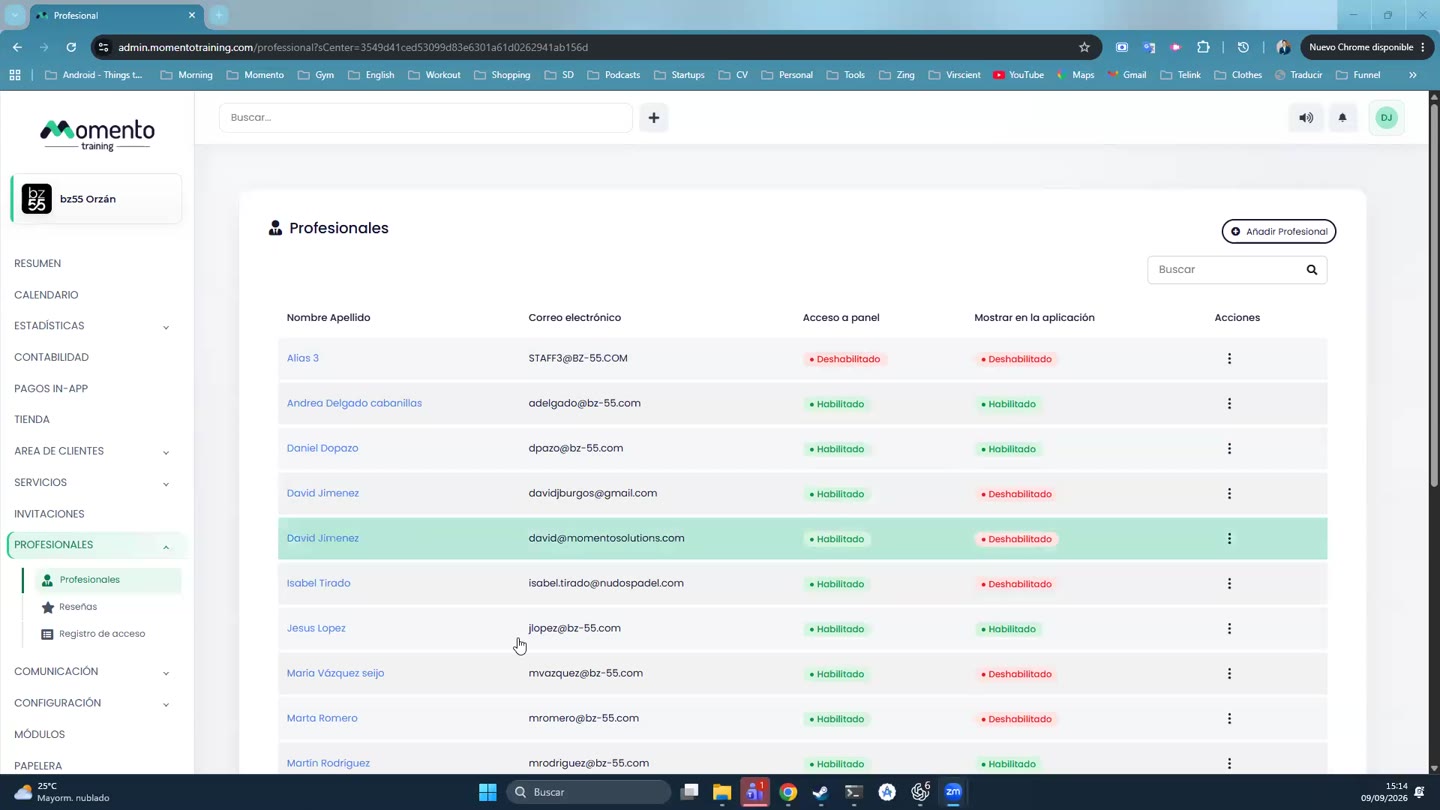
- Go to Professionals › Professionals.
- Add a new professional with their name and email.
- In the General tab, choose:
- Show in the app: clients see them in the app.
- Show in calendars and classes: they can be assigned to classes.
- Available for clients to chat with.
- Color: how their classes look on the calendar.
- Save.
Then decide what they can do in the panel and the app: see Panel permissions and App permissions.
The professionals list shows each one's name, email, whether they have panel access and whether they show in the app.
Tip: a professional can teach classes without panel access. Leave their panel permissions off and keep Show in calendars and classes on.