 Help Center
Find your way around the panel
What the side menu, the search box and the top-bar buttons are for.

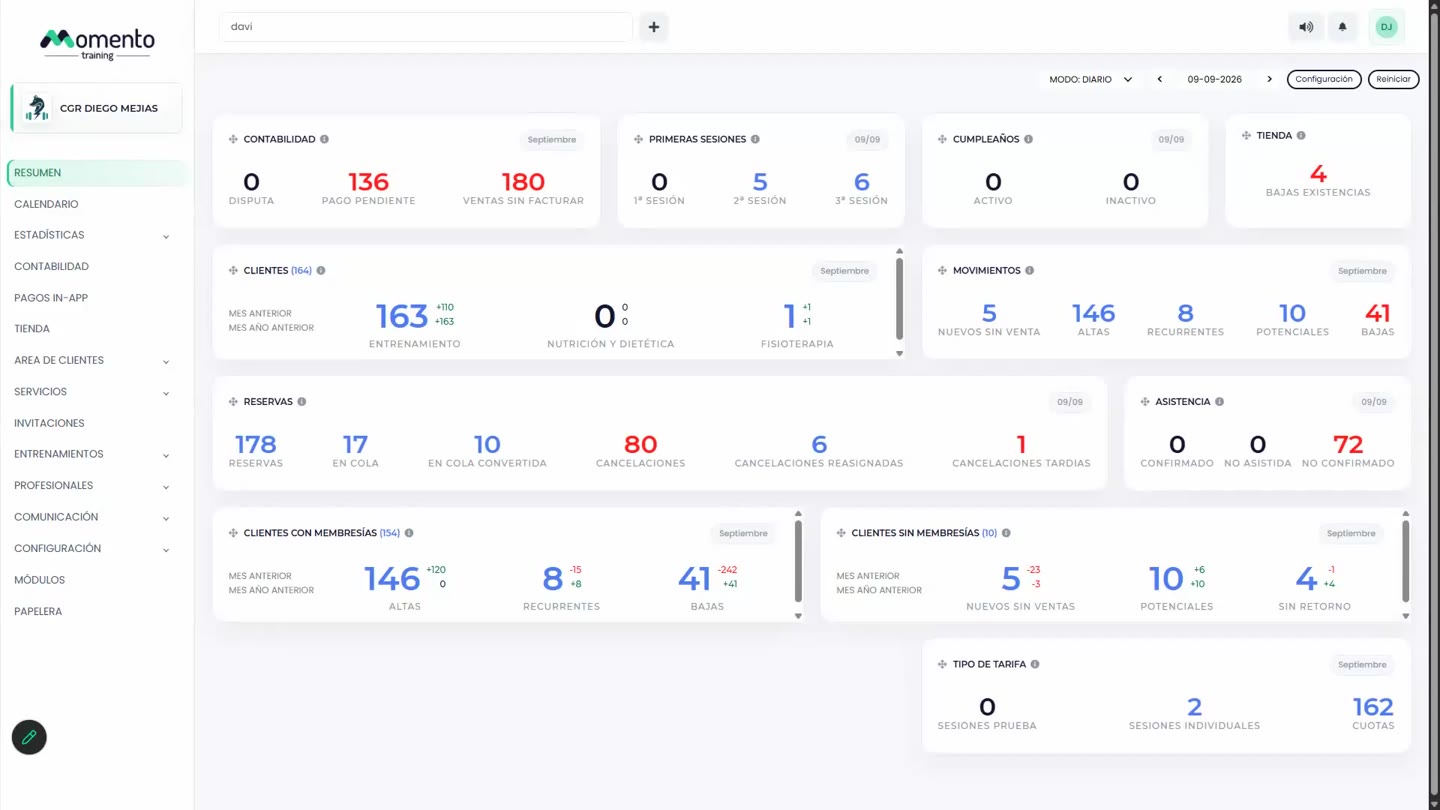
The panel has two fixed areas: the menu on the left, to get to each section, and the top bar, with the shortcuts you'll use every day.
The side menu
From here you reach every section: Overview, CRM, Calendar, Statistics, Accounting, In-app payments, Store, Client area, Services, Invitations, Training, Professionals, Communication, Settings, Modules and Recycle bin.
Sections with sub-pages open when you click them. On a phone or small screen, the menu folds into the button at the top left.
Note: each professional only sees the sections they have permission for. If someone on your team is missing something, check their panel permissions.
The top bar
- Search (magnifying glass): find any client or professional from anywhere. Next to each client you'll see a colored circle:
- Green: they have an active, paid membership.
- Red: they have an active membership with payment pending.
- Empty: they have no active membership.
- New client: takes you straight to creating a client.
- Silent mode: while it's on, your changes don't send notifications to clients. Use it when you're reorganizing lots of classes.
- Support (headset): opens contact with our team.
- Notifications (bell): the panel's alerts.
- Your initials: your profile, your email signature and Switch center if you manage several.
Tip: before moving or deleting lots of classes at once, turn on Silent mode. It saves your clients from a flood of alerts.