 Help Center
When to use silent mode
Avoid automatic notifications while making internal changes or testing in the panel.

Silent mode lets you work inside the panel without sending automatic notices to clients or users affected by your changes.
Use it when reorganising sessions, moving bookings, adding clients to the waiting list, cancelling internal appointments, or testing.
Before making final changes that should notify clients, check whether silent mode is still enabled.
Recommended steps
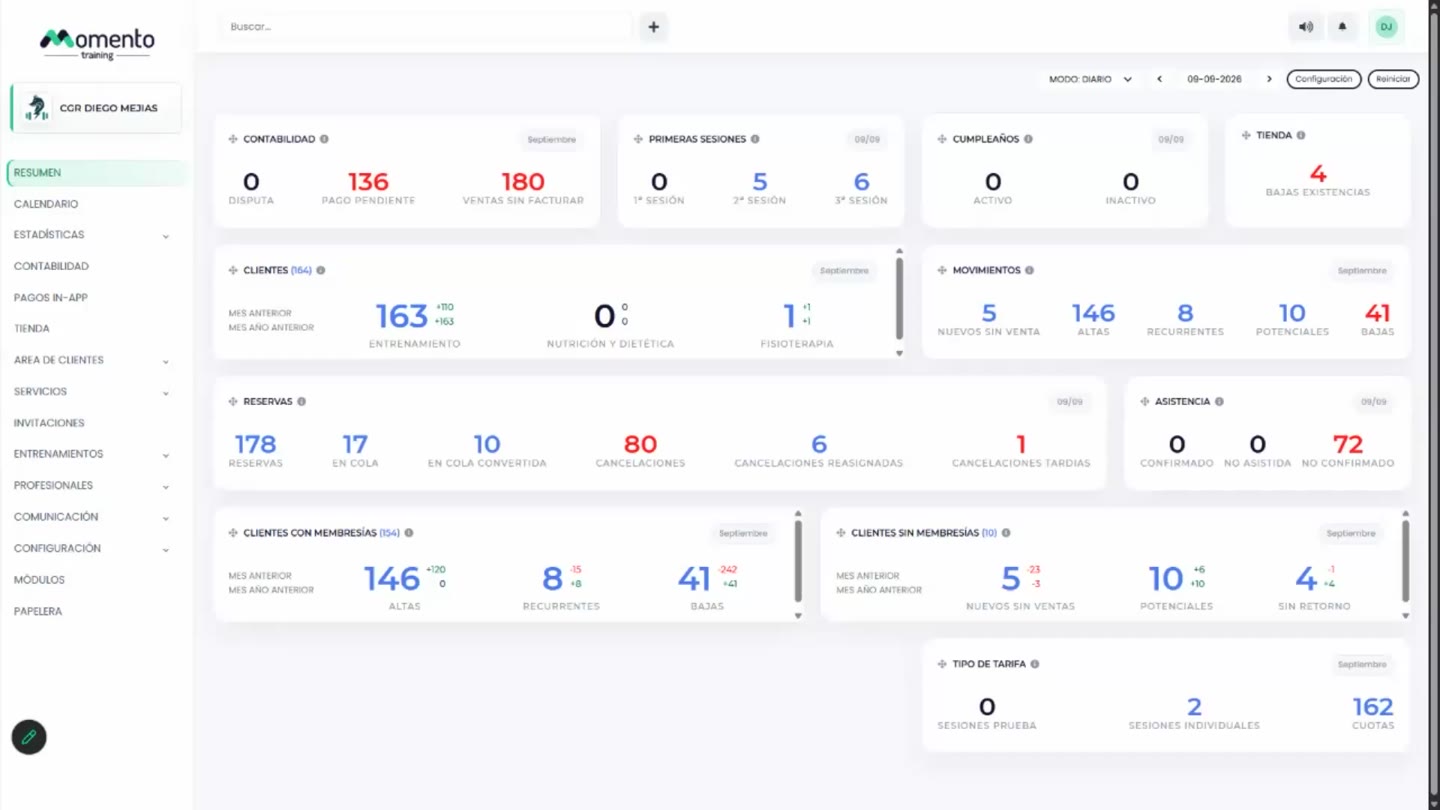
- Find the button on the right side of the top bar.
- Enable it before making internal changes.
- Disable it when you want real notifications to resume.
Before you start
Make sure you are in Top bar and that you have permission to perform this action in the correct center.
If you are changing information that affects clients, bookings, payments, or notifications, review the current state first to avoid incomplete changes.
What happens next
After saving or applying the action, return to the related list, profile, or session and check that the change appears as expected.
If the result is not what you expected, review filters, selected date, active center, and item status before repeating the action.