 Help Center
Send a notification to the app
A message that goes straight to your clients' phones.

Written by MomentoNovember 6, 2026
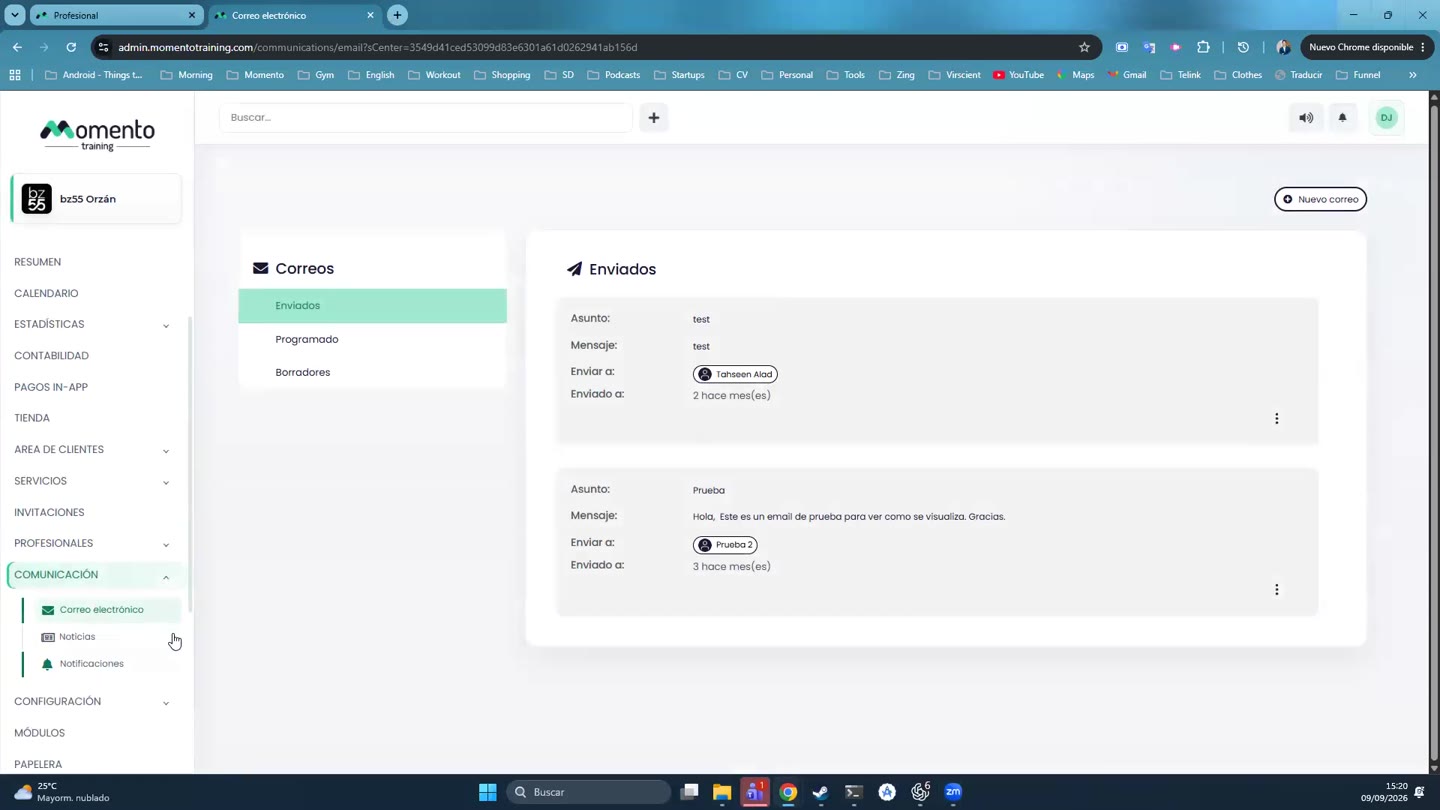
- Go to Communication › Notifications and click New notification.
- Fill in:
- Recipients.
- Title.
- Subtitle.
- Message.
- Choose Send now, Schedule sending or Save as draft.
Advanced options
Under the notification's Advanced settings you can choose:
- Show as alert: the message opens in a pop-up when the client opens the app.
- Expiry date: after that date, the notification stops showing.
- Silent: it arrives without sound.
Note: only clients with the app installed and notifications allowed on their phone receive notifications.
Email or notification?
- Notification: for short, urgent alerts ("Today's 7pm class is in Room 2").
- Email: for longer messages or ones the client may want to keep.