 Help Center
Automatic bookings
Book a client into their usual classes without them having to book every week.

Written by MomentoNovember 6, 2026
If a client always comes to the same classes (say, Monday and Wednesday at 7pm), you can set up automatic bookings. Momento books their spot every week.
Create an automatic booking
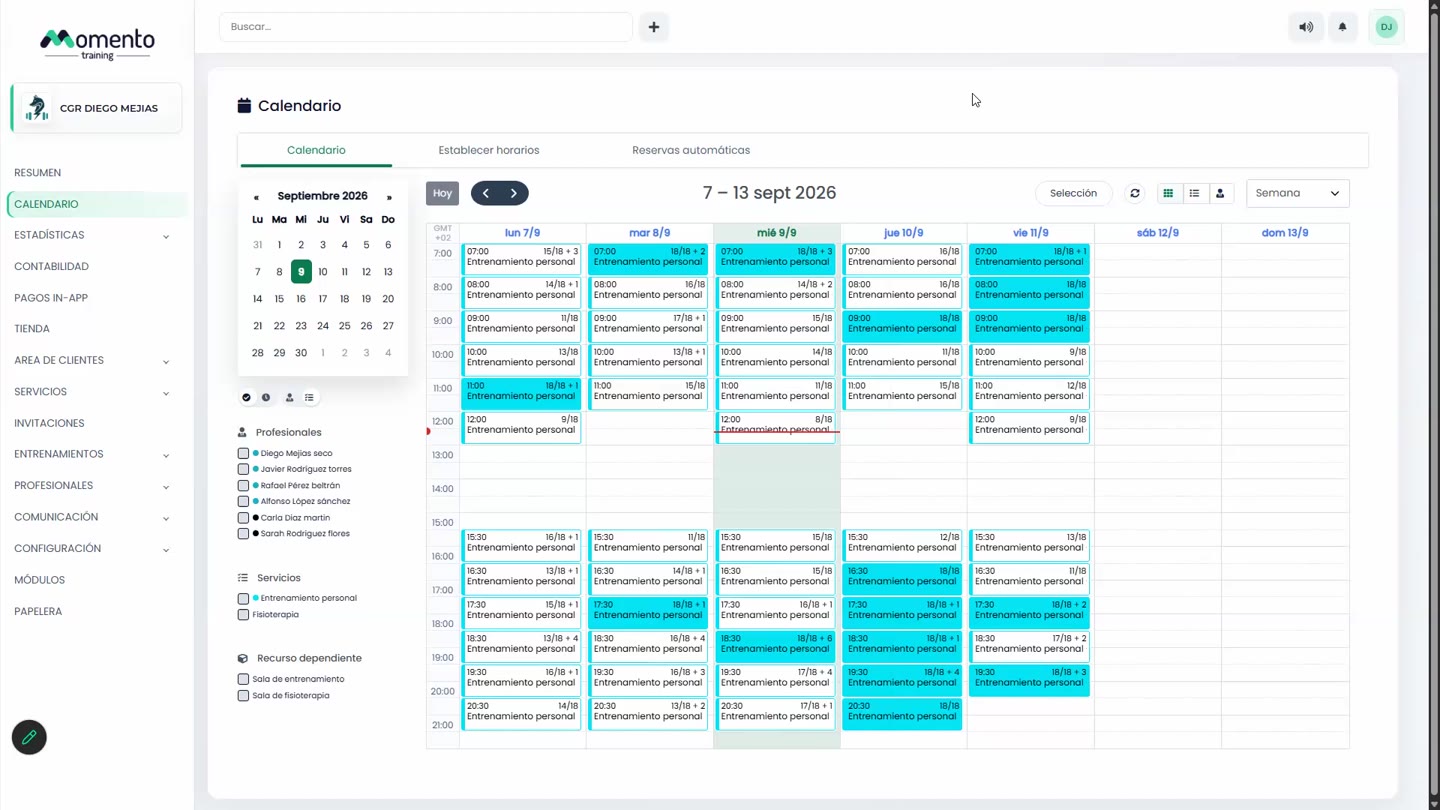
- Go to Calendar and open the Automatic bookings tab.
- You'll see the typical week with the automatic bookings in each slot. Click a slot and add the client.
- In the preferences, set:
- The services and days of the week.
- The slot's start and end time.
- The preferred professional, if any.
- From when (Start from) and until when (Until, inclusive).
- Save.
You can also see and create them from the client file, Appointments tab, Automatic section.
How they work
- Momento books ahead according to the service's Automatic booking period (in days).
- It only books if the client has a valid membership with sessions available.
- If you change the preferences, click Regenerate automatic booking to apply the changes.
Note: memberships with Prevent purchases of this membership from being used for automatic bookings turned on aren't used for these bookings.
See how classes fill up
The Automatic bookings tab shows you which classes fill up on their own with automatic bookings and where there are gaps. Useful for deciding whether to open more spots or move classes.