 Help Center
View the calendar
Switch between day, week, month, list or by-professional views.

Written by MomentoNovember 6, 2026
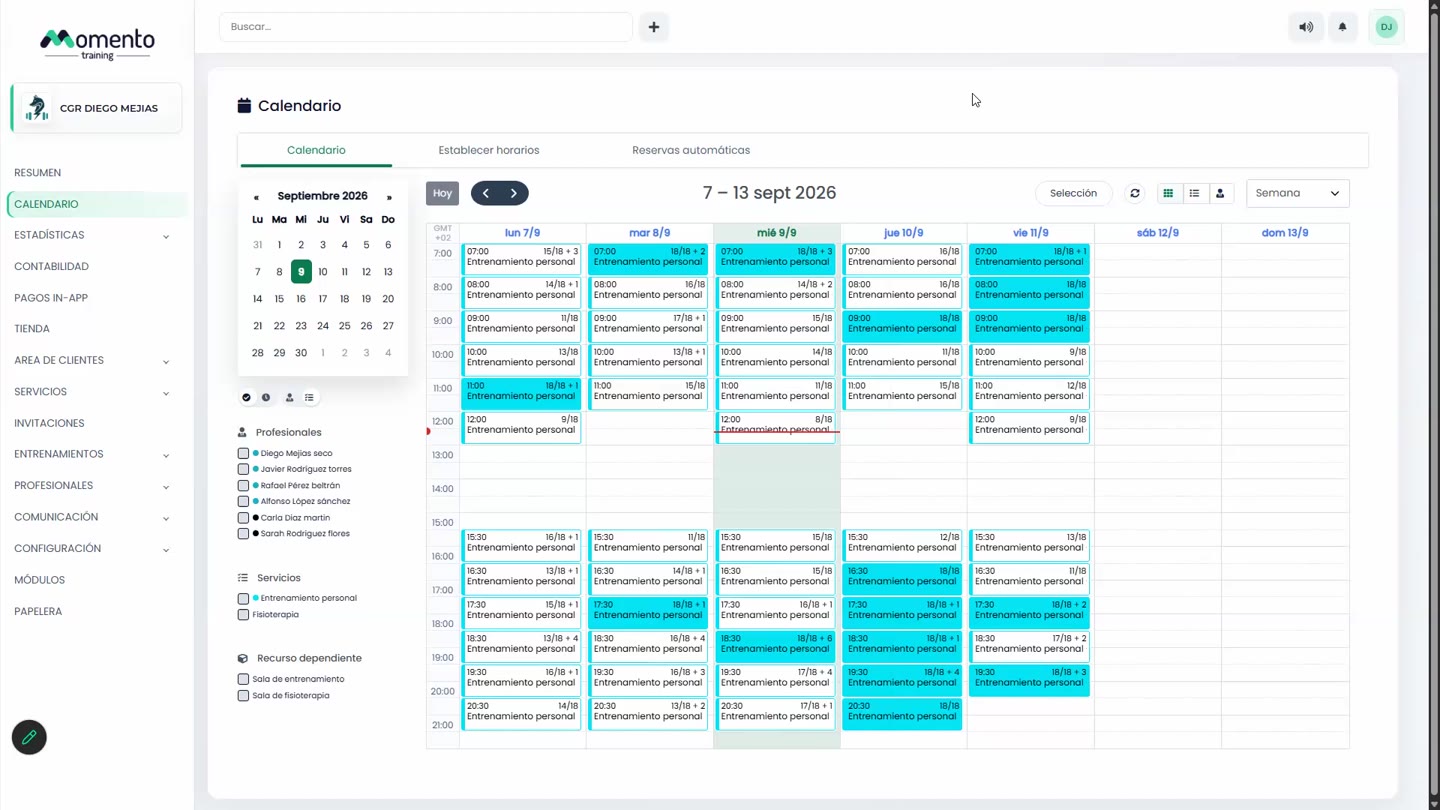
In Calendar, Calendar tab, you can choose how to see your classes.
Choose the range
The view dropdown offers 1 day to 6 days, Week, Month, Agenda or List.
- Today takes you back to the current day. The arrows move forward or back.
- The date picker jumps to a specific day.
- Refresh reloads the classes without leaving the screen. Useful if someone on your team has just made changes.
Momento remembers the view you choose, so everyone on the team can work with the one they find most comfortable.
Choose the type of view
The icons on the right switch between:
- Calendar view: classes on a planner, like Google Calendar.
- List view: classes as a list. Each row shows the time, service, theme and occupancy, for example 11:00 (1/1).
- Professionals view: the day organized by professional, to see who's busy and who has gaps.
Read occupancy at a glance
- Outline only: the class is empty.
- With a side mark: it has bookings, but spots are left.
- Fully filled: it's full.
You can also color classes by service or by professional.
Tip: to change specific classes, work in day or week view. Month view is better for getting your bearings.